You have signed up for Leave Balance and you have got a team in Australia, New Zealand, or both. Nice one. This guide walks you through setting up your leave policies to match local entitlements, configuring public holidays, and getting your team onboarded — all in about 15 minutes.
Whether you are managing a single office in Melbourne or a trans-Tasman team spread across Sydney, Auckland, and Perth, the process is the same. Follow these seven steps and your team will be requesting and tracking leave by the end of the day.
Step 1: Create Your Organisation
Start by signing up for a 14-day free trial — no credit card required. Once you are in, you will be prompted to set up your organisation.
Head to Settings > Organisation and configure the following:
- Organisation name — your company or trading name.
- Time zone — select the time zone for your primary office. Common choices include AEST (UTC+10) for eastern Australia, AWST (UTC+8) for Western Australia, and NZST (UTC+12) for New Zealand.
- Base currency — AUD or NZD, depending on where the majority of your team is located.
For trans-Tasman teams: Set your primary location first (typically where the larger part of your team sits). You will add the second country as an additional leave policy in the next steps. Leave Balance handles multiple countries within a single organisation, so there is no need to create separate accounts.
Step 2: Set Up Australian Leave Policies
Navigate to Settings > Leave Policies and create a policy for each leave type your Australian employees are entitled to. Here is what to configure.
Annual Leave
Create a new leave policy and name it “Annual Leave — Australia”.
- Entitlement: 20 days (4 weeks) per year for full-time employees, based on a 38-hour ordinary working week.
- Accrual method: Progressive. Under the Fair Work Act, annual leave accrues each pay period — not as a lump sum on an anniversary date. Select “Progressive accrual” in the dropdown.
- Carry-over: Unlimited. Australian law does not permit employers to cap or forfeit unused annual leave. Set the carry-over limit to “Unlimited”.
- Leave loading: If your employees are covered by a Modern Award that requires leave loading, toggle on the leave loading option and set it to 17.5%. This is the standard rate under most awards. Check your specific award if you are unsure.
- Shift workers: If you employ shift workers entitled to 5 weeks of annual leave, create a separate policy named “Annual Leave — Australia (Shift Workers)” with an entitlement of 25 days (5 weeks) per year.
Personal/Carer’s Leave
Create a policy named “Personal Leave — Australia”.
- Entitlement: 10 days per year for full-time employees, pro-rata for part-time.
- Accrual method: Progressive — accrues from the first day of employment.
- Accumulation: Unlimited. Personal leave accumulates year on year with no cap.
- Important: Casual employees are not entitled to paid personal/carer’s leave under the National Employment Standards. Do not assign this policy to casual employees.
Compassionate Leave
Create a policy named “Compassionate Leave — Australia”.
- Entitlement: 2 days per occasion.
- Accrual: None — this leave is available per qualifying event, not accrued over time. Select “Per occasion” as the accrual type.
- Scope: Available to all employees, including casuals (though casuals receive it as unpaid leave).
Family and Domestic Violence Leave
Create a policy named “FDV Leave — Australia”.
- Entitlement: 10 days per year.
- Confidentiality: This is critical. Toggle the “Mark as confidential” setting. When a leave type is marked as confidential, it will not appear on team calendars, standard reports, or manager dashboards. Only designated HR administrators can view FDV leave records. This protects employee privacy and is essential for compliance.
- Scope: Available to all employees, including casuals. This entitlement applies from day one.
Long Service Leave
Long service leave entitlements vary by state and territory. Create a separate policy for each state where your employees are based — for example, “Long Service Leave — VIC” or “Long Service Leave — NSW”.
Here are the key parameters to configure:
| State/Territory | Qualifying Period | Entitlement |
|---|---|---|
| NSW | 10 years | 8.67 weeks |
| VIC | 7 years | 8.67 weeks |
| QLD | 10 years | 8.67 weeks |
| SA | 10 years | 13 weeks |
| WA | 10 years | 8.67 weeks |
| TAS | 10 years | 8.67 weeks |
| NT | 10 years | 13 weeks |
| ACT | 7 years | 8.67 weeks |
- Tracking: Set the qualifying period start date to the employee’s original start date with your organisation. Leave Balance will calculate eligibility automatically and notify you when an employee approaches their qualifying date.
Step 3: Set Up New Zealand Leave Policies
Now create leave policies for your New Zealand team members.
Annual Leave
Create a policy named “Annual Leave — New Zealand”.
- Entitlement: 20 days (4 weeks) per year.
- Eligibility: Under the Holidays Act 2003, employees become entitled to annual leave after 12 months of continuous employment. Set the eligibility waiting period to 12 months.
- Employees under 12 months: For employees who have not yet reached their 12-month anniversary, configure the 8% holiday pay accrual. This ensures they accrue holiday pay on their gross earnings, which is paid out if they leave before the 12-month mark or taken as leave once they become entitled.
- Carry-over: Employees can carry over unused leave, but employers can request that employees take their leave within 12 months of it becoming available.
Sick Leave
Create a policy named “Sick Leave — New Zealand”.
- Entitlement: 10 days per year (increased from 5 days following the Holidays Amendment Act 2021).
- Eligibility: After 6 months of continuous employment. Set the eligibility waiting period accordingly.
- Carry-over cap: 20 days maximum. Unlike Australian personal leave, New Zealand sick leave has a statutory cap on accumulation. Set the carry-over limit to 20 days.
Bereavement Leave
Create a policy named “Bereavement Leave — New Zealand”.
- Entitlement: 3 days per occasion for the death of a spouse, parent, child, sibling, grandparent, grandchild, or spouse’s parent. 1 day per occasion for other bereavements.
- Accrual: None — available per occasion after 6 months of continuous employment.
- Configuration tip: You may wish to create two sub-policies (3-day and 1-day) or use a single policy set to 3 days and adjust manually for the 1-day entitlement. Leave Balance supports both approaches.
Family Violence Leave
Create a policy named “Family Violence Leave — New Zealand”.
- Entitlement: 10 days per year from day one of employment. No waiting period.
- Confidentiality: As with the Australian FDV policy, toggle the “Mark as confidential” setting. This is a legal requirement under the Domestic Violence — Victims’ Protection Act 2018.
Step 4: Configure Public Holidays
Navigate to Settings > Public Holidays to set up holiday calendars for your team.
Australian Public Holidays
Create a holiday calendar named “Australia — National” and add the following national public holidays for 2026:
- New Year’s Day (1 January)
- Australia Day (26 January)
- Good Friday (3 April)
- Easter Saturday (4 April)
- Easter Monday (6 April)
- Anzac Day (25 April)
- Queen’s Birthday (date varies by state)
- Christmas Day (25 December)
- Boxing Day (26 December)
Next, create state-specific calendars for any additional holidays your employees observe. For example, Melbourne Cup Day in Victoria, Reconciliation Day in the ACT, or Royal Queensland Show in Brisbane. Assign employees to the correct calendar based on their work location.
New Zealand Public Holidays
Create a holiday calendar named “New Zealand — National” and add all 11 national public holidays for 2026:
- New Year’s Day (1 January)
- Day after New Year’s Day (2 January)
- Waitangi Day (6 February)
- Good Friday (3 April)
- Easter Monday (6 April)
- Anzac Day (25 April)
- Matariki (10 July)
- King’s Birthday (8 June)
- Labour Day (26 October)
- Christmas Day (25 December)
- Boxing Day (26 December)
Then add the relevant regional anniversary day for each employee’s location — for example, Auckland Anniversary Day, Wellington Anniversary Day, or Canterbury Anniversary Day.
Assigning Holiday Calendars
Once your calendars are created, assign each employee to the correct holiday calendar based on their physical work location. For trans-Tasman teams, this means Australian employees get the Australian national calendar plus their state calendar, and New Zealand employees get the New Zealand national calendar plus their regional anniversary day.
Step 5: Add Your Team
Go to Team > Add Employees to start building your team roster.
You have two options:
- Add individually — use the form to enter each employee’s details one at a time.
- Bulk upload via CSV — download the CSV template, fill in your employee data, and upload it. This is the faster option if you have more than a handful of people.
For each employee, you will need to set:
- Name and email address
- Location — Australian state/territory or New Zealand region
- Employment type — full-time, part-time, or casual
- Start date — this is essential for calculating accruals, eligibility waiting periods, and long service leave qualifying dates
- Assigned leave policies — select the relevant policies you created in Steps 2 and 3
Part-Time Employees
For part-time employees, set their ordinary hours per week. Leave Balance uses this to calculate pro-rata entitlements automatically. For example, a part-time employee working 22.8 hours per week (60% of 38 hours) will receive 60% of the full-time annual leave entitlement.
Casual Employees
Casual employees have limited leave entitlements. Assign only the leave types they are entitled to:
- Australia: Compassionate leave (unpaid), FDV leave (paid), unpaid carer’s leave (2 days per occasion), and community service leave.
- New Zealand: All leave types apply after the relevant waiting periods, as there is no separate casual classification under the Holidays Act.
Step 6: Connect Slack or Teams
This is where Leave Balance really comes into its own. Navigate to Settings > Integrations and connect your messaging platform.
- Slack: Click “Connect Slack” and authorise Leave Balance in your workspace. Select the channels where you want leave notifications posted, or keep notifications targeted to individuals only.
- Microsoft Teams: Click “Connect Teams” and sign in with your Microsoft 365 admin account. Approve the permissions and configure your notification preferences.
Once connected, your employees can:
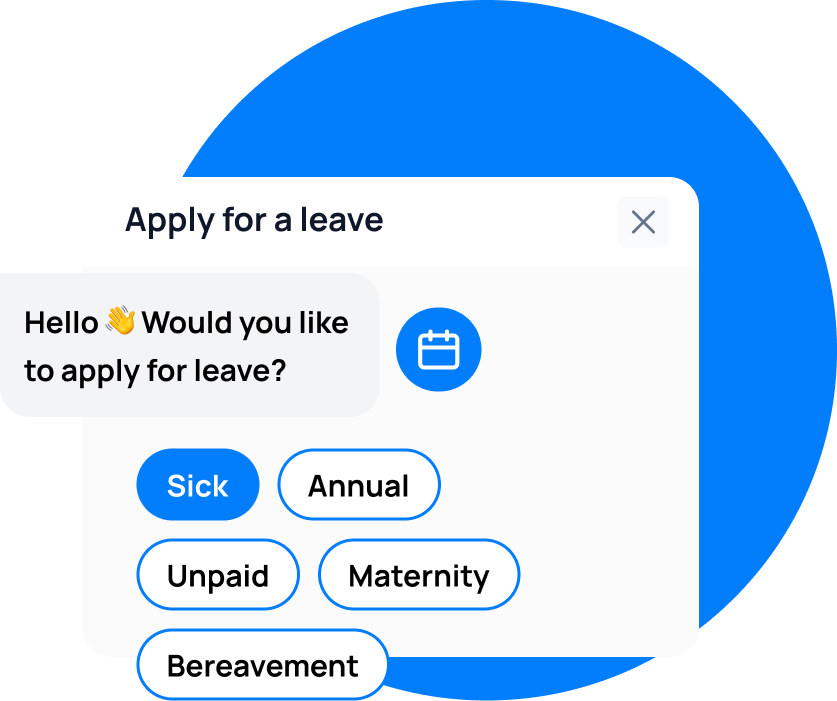
- Request leave directly from Slack or Teams — no need to log in to a separate system.
- Check their leave balances with a quick command.
- Receive approval notifications instantly when their manager responds to a request.
This removes friction from the leave request process and means your team is more likely to use the system from day one.
leave emails? Track your employee's leave with Leave Balance
Step 7: Set Approval Workflows
Head to Settings > Approvals to configure who approves leave requests.
- Assign managers or approvers for each team or department. You can set this at the team level or assign individual approvers per employee.
- Leave type rules: Configure whether approval is required for all leave types or only certain ones. For example, you might require approval for annual leave but allow personal leave to be logged without approval (with a medical certificate uploaded for absences longer than the required period).
- Backup approvers: Set up backup approvers for when a primary manager is on leave themselves. This prevents leave requests from sitting in a queue unanswered. Leave Balance will automatically route requests to the backup approver when the primary approver is unavailable.
You Are Done
That is it. Your Leave Balance account is now fully configured for your Australian and New Zealand team.
Here is what is now in place:
- Leave requests can be submitted from Slack, Teams, or the web dashboard.
- Balances accrue automatically based on the accrual methods you configured — no manual calculations needed.
- Public holidays are tracked so that leave taken around a public holiday is calculated correctly.
- All leave data is recorded with a full audit trail, which is essential for Fair Work Act compliance in Australia and Holidays Act compliance in New Zealand.
- Total setup time: approximately 15 minutes.
Tips for ANZ Teams
Before you close this tab, here are a few things worth doing in your first week:
- Review your Modern Award to confirm leave loading requirements before you finalise your Australian leave policies. The Fair Work Commission maintains a full list of Modern Awards at fairwork.gov.au.
- Set calendar reminders to update your public holiday calendars each year. National holidays are published well in advance, but state and regional dates can shift.
- Use the analytics dashboard to spot absence trends before they become problems. Leave Balance tracks patterns across your team so you can identify potential burnout or staffing gaps early.
- Export leave data for your payroll provider at the end of each pay period. Go to Reports > Payroll Export and select the date range and employees you need. This saves your payroll team from manually reconciling leave records.
- Invite your team early. The sooner your employees start using Leave Balance for requests, the sooner you have a single source of truth for all leave data.
If you have questions during setup, reach out to our support team — we are here to help you get everything configured correctly.
leave emails? Track your employee's leave with Leave Balance