
Leave-aware rostering means building work schedules that automatically account for approved leave, public holidays, and known absences — so you never double-book a team member or discover an understaffed shift on the day. Most small businesses roster in a vacuum: they check who might be around, fill in the blanks, and hope nothing changes. That approach breaks down the moment someone’s approved annual leave overlaps with your busiest week.
This guide explains how to move from blind rostering to leave-aware rostering across the UK, Australia, and New Zealand, with practical steps you can implement today.
Plan the leave layer first: Add team absences and minimum staffing to the free Team Leave Coverage Planner to surface overlap risks before building the roster.
Key Takeaways
- Leave-aware rostering pulls approved leave data directly into the scheduling process, eliminating guesswork and double-bookings.
- In Australia, the Fair Work Act requires minimum notice for roster changes — you cannot shift someone’s roster after publishing without consequence.
- UK Working Time Regulations limit weekly hours to 48 (averaged over 17 weeks), which affects how many shifts you can assign.
- New Zealand’s Holidays Act 2003 requires employers to track leave balances accurately, making a connected roster essential.
- The simplest way to achieve leave-aware rostering is to connect your leave management system to your roster, either via integration or a tool that does both.
What Is Leave-Aware Rostering?
Traditional rostering works like this: you create the schedule based on expected availability, publish it, and deal with leave requests by editing the roster after the fact. Approved leave creates a hole you have to fill — often at the last minute.
Leave-aware rostering flips the process. When an employee submits a leave request and it gets approved, that absence is already reflected in the scheduling view. You see gaps before you finalise the roster, not after. The system knows who is available and when, factoring in:
- Approved annual leave — already booked and confirmed
- Public holidays — dates when the business may be closed or penalty rates apply
- Sick leave patterns — historical absence data that helps forecast future demand
- Personal leave — known absences for appointments, family obligations, etc.
- Standing patterns — part-time employees who never work certain days
The result is a roster that reflects reality, not wishful thinking.
Why Most SMB Rosters Ignore Leave
The root cause is almost always a disconnect between the leave system and the roster. In most small businesses, these are separate processes:
- Leave lives in email or Slack. An employee messages their manager, the manager says yes, and nobody updates the roster spreadsheet until the day arrives.
- Leave lives in a spreadsheet. Someone maintains a leave tracker, but the roster is built in a different spreadsheet — or on paper — with no connection between the two.
- Leave lives in software, but not rostering software. Many businesses use a leave management tool but still build rosters in Excel. The approved leave sits in one system and the roster sits in another.
Each of these scenarios forces a manual step: someone must check the leave tracker, then update the roster. That step gets skipped under time pressure, and suddenly you have a team member rostered for a shift they will not attend.
How to Build a Leave-Aware Rostering Process
Step 1: Choose a Roster Cycle
Most SMBs roster weekly or fortnightly. Weekly rosters are simpler but require more effort. Fortnightly rosters reduce admin time but need more advance planning.
| Business Type | Recommended Cycle | Why |
|---|---|---|
| Retail / hospitality | Weekly | Variable demand, frequent changes |
| Healthcare / aged care | Fortnightly | Stable demand, complex shift patterns |
| Office-based teams | Fortnightly | Predictable schedules, less churn |
Step 2: Set a Roster Publication Deadline
Publish the roster a minimum of 2 weeks before the roster period starts. This is not just good practice — in Australia, some awards mandate minimum notice periods. In the UK, a reasonable notice period protects against constructive dismissal claims.
- Australia: Check your award. Most awards require 7–14 days’ notice for roster publication. The Fair Work Ombudsman recommends publishing rosters with enough notice for employees to maintain work-life balance.
- UK: The Employment Rights Act 1996 requires reasonable notice for changes to working hours. Two weeks is the generally accepted minimum.
- New Zealand: The Holidays Act 2003 requires employers to keep accurate records of hours and leave. Two weeks’ notice is best practice.
Step 3: Set a Leave Request Deadline
Before you start building the roster, close the leave request window. A common approach:
- Close leave requests 5 business days before the roster is published
- Process any outstanding requests before building the schedule
- Allow emergency leave requests, but flag them separately
This gives you a clear picture of who is available when you sit down to roster.
Step 4: Build the Roster with Leave Data Visible
If you use a spreadsheet, create a column for each day that shows whether an employee is on leave. If you use software, ensure the roster view shows approved absences inline. The key principle: never build a roster without seeing leave data in the same view.
Step 5: Account for Compliance Rules
Each jurisdiction has different rules that affect roster design:
UK — Working Time Regulations:
- Maximum 48-hour week (averaged over 17 weeks, unless the employee has opted out)
- Minimum 11 hours rest between shifts
- Minimum 24 hours rest per week (or 48 hours per fortnight)
- Night workers limited to 8 hours per shift
Australia — Fair Work Act and Awards:
- Minimum engagement periods (typically 2–4 hours depending on award)
- Maximum weekly hours (typically 38 hours for full-time, unless otherwise specified)
- Rest breaks between shifts (minimum 10–12 hours depending on award)
- Overtime and penalty rates for hours outside the standard pattern
New Zealand — Holidays Act 2003 and Employment Relations Act 2000:
- Maximum 40 hours per week (unless otherwise agreed)
- Minimum 11 consecutive hours of rest per day
- 1 day off per 7-day period (for regular part-timers)
- Alternative holidays for working public holidays
Step 6: Handle Mid-Roster Changes
Even with leave-aware rostering, changes happen. The key is having a process:
- Employee notifies you of a new absence
- Check the roster for conflicts
- Identify available staff (check who is not already rostered that day)
- Offer the shift via your communication channel
- Update the roster and notify the team
If your leave management tool is connected to the roster, step 2 happens automatically.
Leave-Aware Rostering Across Three Jurisdictions
| Factor | UK | Australia | New Zealand |
|---|---|---|---|
| Maximum weekly hours | 48 (averaged) | 38 (standard) | 40 |
| Minimum rest between shifts | 11 hours | 10–12 hours | 11 hours |
| Roster publication notice | 2 weeks (best practice) | 7–14 days (award-dependent) | 2 weeks (best practice) |
| Public holiday handling | Bank holidays — entitlement depends on contract | Public holidays — penalty rates apply, employee can refuse to work | Public holidays — alternative holiday if required to work |
| Leave record-keeping | 3 years (HMRC) | 7 years (Fair Work) | 6 years (Holidays Act) |
Common Mistakes in Leave-Aware Rostering
- Rostering before processing leave requests. Build in the leave you already know about.
- Ignoring part-time patterns. If someone never works Wednesdays, do not roster them on a Wednesday just because they are technically “available.”
- Treating public holidays as normal days. Penalty rates change labour costs dramatically. A public holiday shift might cost 2–2.5× a normal shift.
- Forgetting to track leave balances at payroll time. If leave was approved but not deducted from balances, you have an accounting problem.
- Using a different system for leave and rostering. The more systems, the more manual steps, the more errors.
How Leave Balance Supports Leave-Aware Rostering
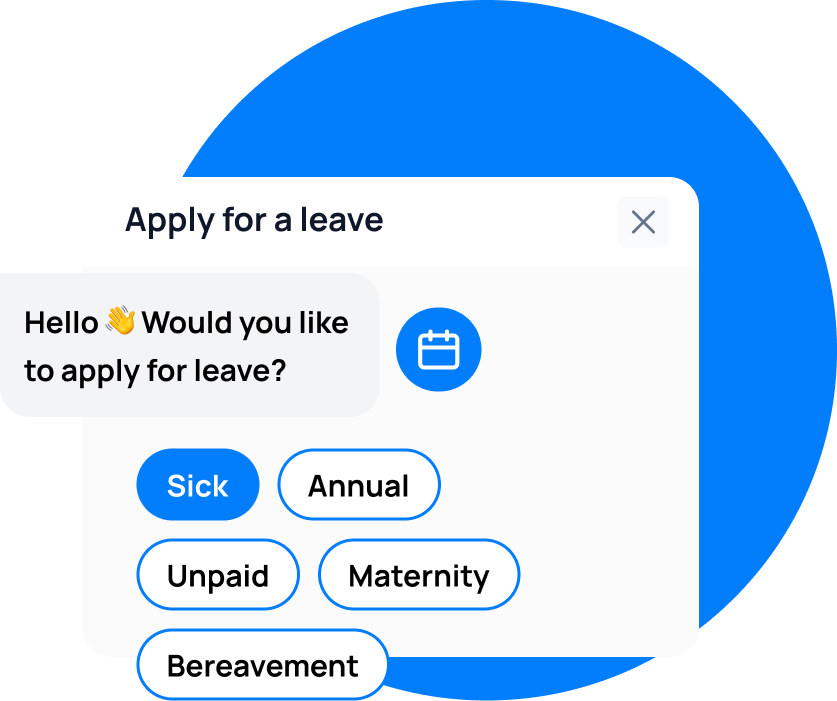
Leave Balance gives you a single system where leave requests are submitted, approved, and immediately visible on a team calendar. When you sit down to build the roster, you see who is already off — no separate spreadsheet to check.
For teams using the Workforce tier, rostering is built in: drag-and-drop scheduling with leave data already populated. Approved leave blocks shifts automatically, and open shifts can be offered to available team members.
For teams using a separate rostering tool, Leave Balance’s team calendar provides the leave data you need to build a leave-aware roster — accessible from Slack, Microsoft Teams, or the web.
leave emails? Track your employee's leave with Leave Balance
Frequently Asked Questions
What is the difference between rostering and scheduling?
Rostering is the creation and publication of work schedules — the plan for who works when. Scheduling is the broader process that includes shift swaps, time-off requests, and real-time adjustments. In practice, most businesses use the terms interchangeably.
How far in advance should I publish a roster?
Two to four weeks is the standard for most SMBs. In Australia, some awards mandate minimum notice periods. In the UK, reasonable notice is expected under employment law. In New Zealand, two weeks is best practice.
Can an employee refuse a rostered shift in Australia?
It depends on the award and the circumstances. Employees can refuse unreasonable roster changes. If you change the roster after publishing without reasonable notice, you may face penalty rate obligations or a dispute under the Fair Work Act.
How do public holidays affect rostering?
In Australia, public holidays attract penalty rates (typically 2–2.5× base pay). In the UK, bank holiday entitlement depends on the employment contract. In New Zealand, employees required to work a public holiday receive an alternative holiday plus premium pay. Factor these costs into your roster.
What is the simplest way to start leave-aware rostering?
Start by creating a shared calendar that shows approved leave. Before building each roster period, check this calendar. The next step is to move to a tool like Leave Balance that automates the process — approved leave automatically appears in the scheduling view, eliminating the manual check.