Employees should not have to wait until they are at their desk to request time off. Whether they are on a commute, working from home, or standing in a queue, the ability to request leave from their phone makes the difference between a request submitted today and one forgotten tomorrow. The Leave Balance mobile app gives employees the full leave request experience on iOS and Android without the compromises that come with mobile-optimised web pages.
The mobile app is not a companion or a read-only view. It is the complete leave management experience: submit requests, check balances, view the team calendar, receive notifications, and cancel pending requests — all from a phone.
Key Takeaways
- The Leave Balance mobile app is available on iOS and Android
- Employees can request leave, check balances, view the team calendar, and manage notifications from their phone
- Push notifications alert employees when requests are approved, rejected, or when new requests need attention
Why Mobile Leave Management Matters
The shift to remote and hybrid work means employees are not always sitting at a desktop. A field worker finishing a shift, a nurse between rotations, a consultant at a client site — all of them need to request leave at some point. Without a mobile app, they must remember to do it when they reach a computer, which often means it does not happen.
Mobile leave management also matters for managers. Approval notifications arrive as push alerts, and managers can approve or reject with one tap. This speeds up the approval cycle and prevents requests from sitting in a queue because the manager was away from their desk.
For teams with shift workers or distributed employees, mobile access is not a convenience. It is a requirement.
How to Request Leave from the Mobile App
Step 1: Open the App and Tap “Request Leave”
The home screen shows the employee’s current leave balances and any pending requests. The “Request Leave” button is prominent at the bottom of the screen.
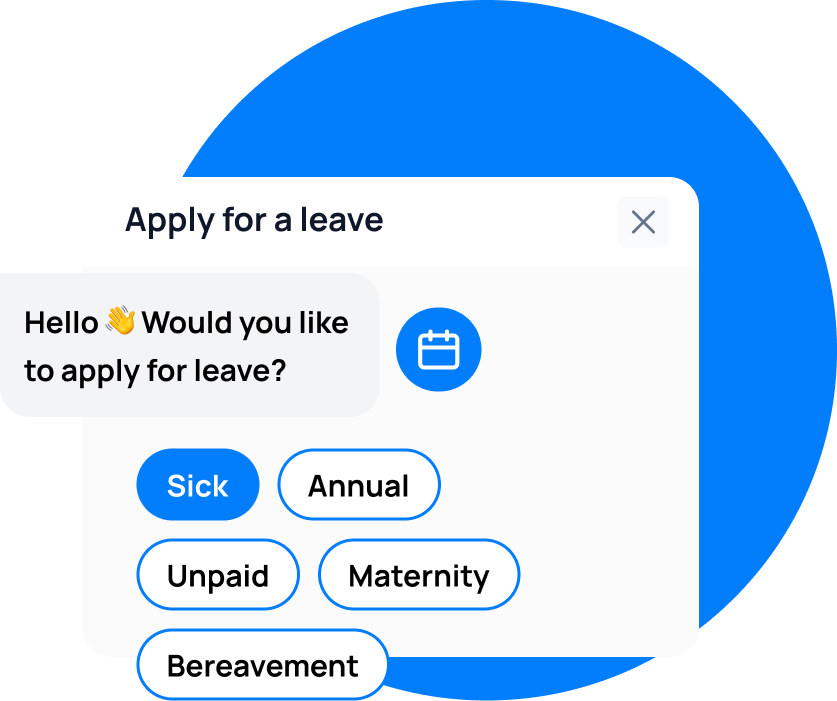
Step 2: Select Leave Type
Choose from the leave types available under your policy. The app shows each type with the current balance and the maximum available:
- Annual Leave
- Personal/Carer’s Leave
- Compassionate Leave
- Long Service Leave
- Unpaid Leave
- Custom types configured by your HR team
Step 3: Choose Dates
The calendar view lets you select start and end dates. Drag to select a range, or tap individual days for intermittent leave. The app shows:
- The number of days being requested
- Any public holidays that fall within the range (excluded from the leave count)
- The impact on your remaining balance
Step 4: Add Details
Add an optional note for your manager. If your policy requires a reason, the app prompts for it. You can also attach a document (such as a medical certificate) directly from your phone.
Step 5: Submit
Review the request summary and tap “Submit.” The request is sent to your manager for approval. You receive a push notification when the request is approved or rejected.
Other Mobile Features
Check Leave Balances
The home screen displays your current balances at a glance. Tap any leave type to see:
- Total entitlement for the current period
- Days taken so far
- Days remaining
- Accrual history
Team Calendar
The calendar view shows who is out on any given day. Tap a day to see the names and leave types of absent colleagues. This helps employees plan their own requests around team availability.
Pending Approvals (Managers)
Managers see a “Pending Approvals” section on their home screen. Each pending request shows the employee name, leave type, dates, and duration. Tap to review and approve or reject with one tap.
Notification History
The notifications tab shows all past alerts: approval confirmations, rejection notices, balance updates, and reminders. This provides a complete record of leave-related communications.
What Data Is Available in the Mobile App
| Feature | Data Shown |
|---|---|
| Home screen | Leave balances, pending requests, upcoming leave |
| Request leave | Leave types, available balance, calendar, document upload |
| Team calendar | Team absences by date, leave type, employee name |
| Notifications | Approval/rejection alerts, balance updates, reminders |
| Profile | Personal details, policy assignment, employment info |
| Settings | Notification preferences, password change, session management |
Best Practices
- Enable push notifications. Push notifications are the fastest way to know when your leave is approved or when a manager has a pending request. Disable them and you risk missing time-sensitive updates.
- Use the document upload feature. If your policy requires a medical certificate or other supporting document, upload it directly from your phone when submitting the request. This avoids the “I forgot to attach it” problem.
- Check the team calendar before requesting. The calendar shows who is already out. Avoid requesting leave during periods when the team is already stretched thin.
- Keep the app updated. Leave Balance releases regular updates with new features and security patches. Enable automatic updates on your phone.
FAQ
Is the mobile app available on iOS and Android?
Yes. The Leave Balance app is available on the Apple App Store for iOS and Google Play for Android. The experience is identical on both platforms.
Does the mobile app work offline?
The app caches your leave balances and team calendar for offline viewing. However, submitting requests, approving requests, and updating settings require an internet connection.
Can managers approve leave from the mobile app?
Yes. Managers receive push notifications for pending requests and can approve or reject directly from the notification or the app. The approval is processed in real time.
Is the mobile app as secure as the web app?
Yes. The mobile app uses the same encryption, authentication, and access controls as the web app. SSO and MFA are fully supported on mobile.
Can I use the mobile app and the web app at the same time?
Yes. The mobile app and web app share the same data. Changes made on one appear on the other immediately. There is no conflict or sync delay.
leave emails? Track your employee's leave with Leave Balance