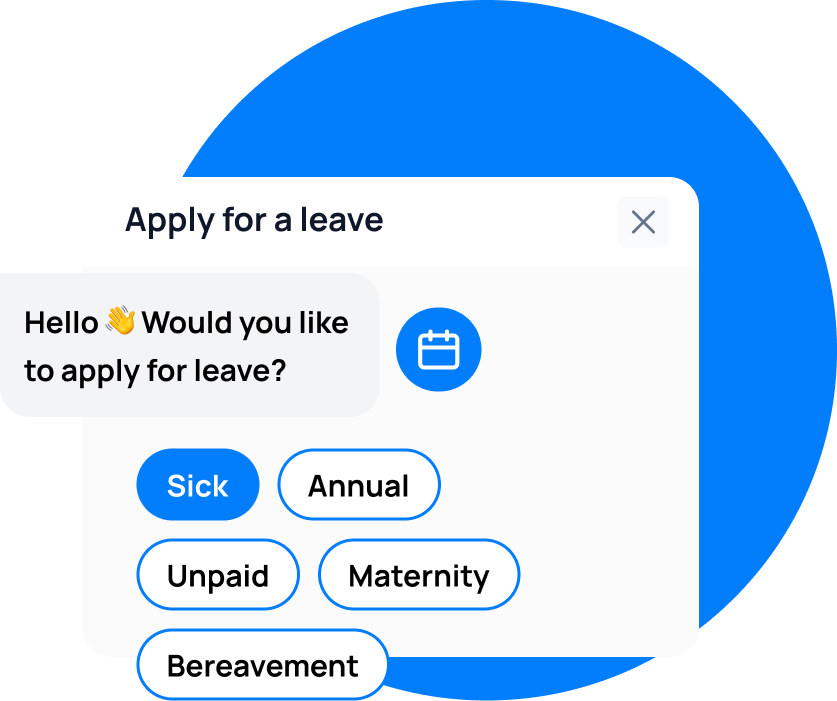
QuickBooks is one of the most widely used payroll platforms in the United States, serving millions of small and medium businesses. But most QuickBooks users still track leave separately — in spreadsheets, email threads, or basic HR tools — and manually enter leave data into QuickBooks before each pay run. That manual step creates errors, delays, and compliance risk.
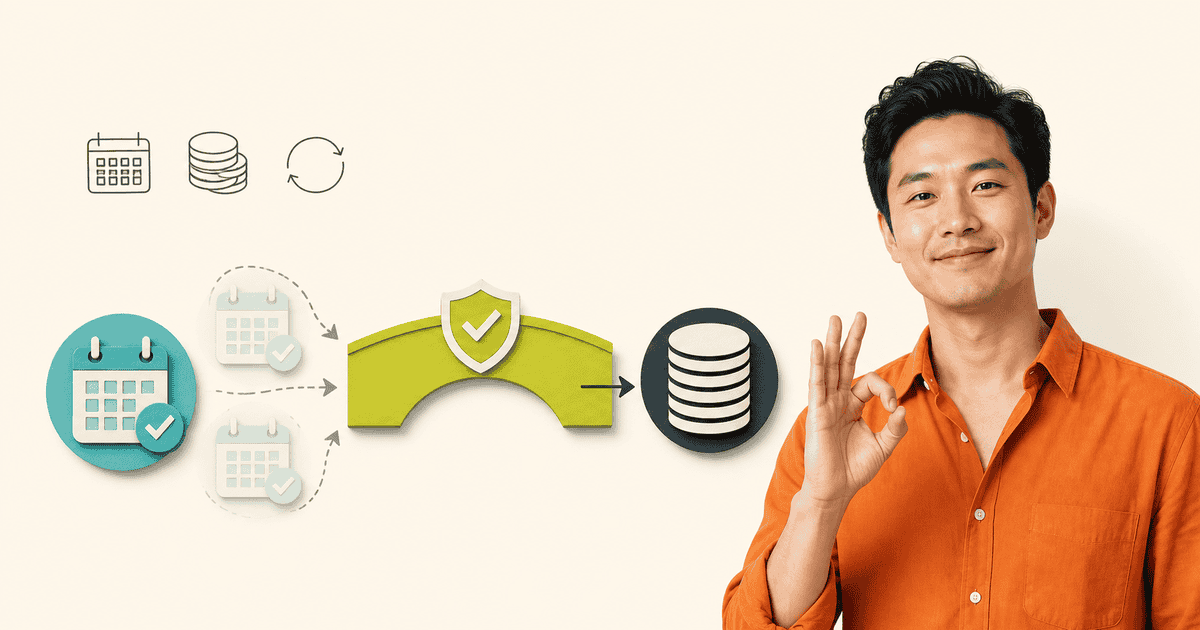
Leave Balance connects to QuickBooks Payroll through the QuickBooks API, pushing approved leave directly into your payroll system. Every approved absence is recorded as a leave entry in QuickBooks, and the payroll team processes pay runs with accurate data already in place.
Key Takeaways
- Approved leave from Leave Balance syncs into QuickBooks Payroll automatically
- Employee records and leave types map between the two systems during initial setup
- The integration eliminates manual data entry and reduces payroll errors
Why QuickBooks Payroll Sync Matters for Leave Management
In the US, employers must track leave accurately for FLSA compliance, state-specific paid sick leave laws, and internal audit purposes. When leave data lives in a separate system from payroll, the payroll team must reconcile the two before every pay run. This creates three common problems:
- Missed entries. Leave approved after the payroll team exported data from the leave system does not make the current pay run. The employee is underpaid, requiring a correction.
- Duplicate entries. Leave entered manually into QuickBooks is entered again when the system syncs, causing overpayments that must be reversed.
- Accrual confusion. QuickBooks shows different accrual balances than the leave system because the two are not in sync.
The integration solves these by making Leave Balance the source of truth for leave approvals and QuickBooks the engine that processes payroll. The two systems stay in sync without manual intervention.
How to Set Up QuickBooks Payroll Integration
Step 1: Verify QuickBooks API Access
QuickBooks Online Payroll API access is available on QuickBooks Online Plus and higher. QuickBooks Simple Start and Essentials may have limited payroll API capabilities. Check your QuickBooks subscription before starting the integration.
Step 2: Authorise Leave Balance in QuickBooks
From your Leave Balance account, navigate to Settings > Integrations > QuickBooks and click “Connect to QuickBooks.”
- Sign in to your QuickBooks account
- Select the company you want to connect
- Review and approve the requested permissions
- You will be redirected back to Leave Balance
The connection uses OAuth 2.0 authentication. Leave Balance never stores your QuickBooks credentials, and the authorisation can be revoked from either platform at any time.
Step 3: Map Leave Types
QuickBooks has standard leave categories (Sick, Vacation, Personal). You need to map each Leave Balance leave type to the correct QuickBooks category:
| Leave Balance Type | QuickBooks Category |
|---|---|
| Annual Leave | Vacation |
| Sick Leave | Sick |
| Personal Leave | Personal |
| Unpaid Leave | Unpaid |
If your QuickBooks account uses custom leave types, the mapping interface lets you match them.
Step 4: Map Employees
The integration matches employees between Leave Balance and QuickBooks using email address. Make sure the email on each employee’s QuickBooks profile matches the email in Leave Balance.
For employees who exist in Leave Balance but not in QuickBooks, the integration can create the employee record automatically. This is useful during initial setup when you have employees already in Leave Balance.
Step 5: Configure Sync Timing
Choose when approved leave pushes to QuickBooks:
- Real-time sync: Each approved leave request is pushed to QuickBooks immediately. This keeps payroll data always current.
- Scheduled sync: Approved leave batches and pushes at a set time, such as daily at end of business. This reduces API calls and is suitable for businesses that process payroll weekly.
Step 6: Test with a Sample Request
Create a test leave request, approve it, and verify:
- The leave entry appears in QuickBooks under the employee’s time-off section
- The next pay run includes the correct leave deduction
- The employee’s accrual balance updates in QuickBooks
What Data Syncs Between Leave Balance and QuickBooks
| Data | Direction | Frequency |
|---|---|---|
| Approved leave requests | Leave Balance → QuickBooks | Real-time on approval |
| Leave cancellations | Leave Balance → QuickBooks | Real-time on cancellation |
| Employee records | Leave Balance → QuickBooks | On connect, then on change |
| Leave balances | QuickBooks → Leave Balance | After each pay run |
| Pay run data | QuickBooks → Leave Balance | After each pay run |
Best Practices
- Use email as the employee identifier. QuickBooks and Leave Balance match employees by email. Keep email addresses consistent across both systems.
- Process payroll after leave approvals. Configure your approval workflow so that leave requests are approved before your payroll processing deadline. This ensures all approved leave is in QuickBooks when the pay run starts.
- Review sync logs monthly. Check the Leave Balance integration dashboard for any failed syncs. Common failures include mismatched employee emails, expired OAuth tokens, or QuickBooks API rate limits.
- Keep QuickBooks leave categories simple. If you have many custom leave types in Leave Balance, map them to QuickBooks’ standard categories rather than creating dozens of custom categories. This keeps payroll reports clean.
FAQ
Does this work with QuickBooks Desktop?
No. The integration uses the QuickBooks Online API, which is only available for QuickBooks Online. QuickBooks Desktop uses a different API and requires a separate integration approach.
Can I sync historical leave data?
The integration syncs forward from the connection date. Historical leave data that was entered directly into QuickBooks remains in QuickBooks but is not pulled into Leave Balance. Use the CSV import feature in Leave Balance if you need historical records.
What happens if an employee is terminated?
When an employee is terminated in Leave Balance, the integration pushes the termination status to QuickBooks. Any pending leave is flagged, and the payroll team can process final pay including any accrued but unused leave.
Can I sync leave balances from QuickBooks to Leave Balance?
Yes. The integration pulls current accrual balances from QuickBooks into Leave Balance after each pay run. This ensures the balances shown to employees in Leave Balance match what QuickBooks calculates.
Is there a limit on the number of employees?
No. The integration supports any number of employees. Leave Balance is priced per workspace, not per employee, so there are no per-seat limits on the integration.
leave emails? Track your employee's leave with Leave Balance