
When an employee’s leave request is approved, that absence should immediately prevent them from being rostered on the affected shifts. In theory, this is obvious. In practice, most small businesses approve leave in one system — email, Slack, a leave tracker — and build the roster in another. The approved leave sits in a manager’s memory or buried in a chat thread, and the roster gets built without it. The result: an employee is scheduled for a shift they will not attend, the manager discovers the conflict the day before, and scrambling to fill the gap costs time, money, and goodwill.
This article explains why the gap between leave approval and roster blocking exists, how auto-blocking works, and how to close the loop in your business.
Key Takeaways
- The gap between leave approval and roster updates is the single biggest source of roster conflicts in SMBs.
- Auto-blocking means an approved leave request automatically prevents the employee from being rostered on the affected dates.
- Most rostering tools do not natively connect to leave management — you need an integration or a combined system.
- Auto-blocking reduces last-minute shift-filling, overtime costs, and manager admin time.
- The simplest fix is to use a leave management tool with a shared calendar that your roster builder checks before finalising each schedule.
Why Approved Leave Still Causes Roster Conflicts
The conflict happens because of a timing and system gap. Here is the typical flow:
- Employee requests leave via email or Slack.
- Manager approves it verbally or in the message.
- Manager does not update the roster until the next roster cycle.
- Meanwhile, someone else builds the roster and does not know about the leave.
- The employee is rostered for shifts they are on leave for.
- The conflict is discovered after the roster is published.
The root problem is that approval and rostering are disconnected events. Even if the manager remembers the leave, the person building the roster might not. And even if the same person does both, they may build the roster days before the leave period and forget about the approval by then.
This gets worse with:
- Multiple managers — one approves leave, another builds the roster without seeing the approval.
- High leave volumes — during holiday periods, dozens of approved absences need to be tracked simultaneously.
- Part-time and casual staff — irregular patterns make it harder to remember who is supposed to be off.
- Remote or distributed teams — no physical noticeboard or verbal handoff to catch the error.
What Auto-Blocking Means
Auto-blocking is the automatic prevention of rostering an employee for shifts that fall within an approved leave period. The mechanism is simple:
- Employee submits a leave request.
- Manager approves it.
- The system marks the employee as unavailable for the dates of the leave.
- When the roster is built, those dates are blocked — the employee cannot be assigned to shifts on those days.
The benefit is not just preventing errors. It is eliminating the manual step entirely. No manager needs to remember to update a spreadsheet. No roster builder needs to cross-reference a leave tracker. The system handles the connection.
How Auto-Blocking Works in Practice
Scenario 1: Leave Management Tool with Shared Calendar
Many leave management tools, including Leave Balance, maintain a team calendar that shows approved absences. If your roster builder checks this calendar before finalising the roster, conflicts are caught before they happen.
Limitation: This is semi-automatic. Someone still needs to look at the calendar. But it is far better than relying on memory.
Scenario 2: Combined Leave and Roster System
The most reliable approach is a system where leave approval and rostering live in the same platform. When leave is approved, the roster view automatically reflects the absence. No manual cross-referencing.
Advantage: Zero chance of a disconnect. The roster builder sees who is available in real time.
Scenario 3: Integration Between Separate Tools
If you use a standalone leave tool and a standalone rostering tool, an integration can push approved leave data into the roster. This is common with platforms like Deputy, where approved leave appears on the scheduling screen.
Consideration: Integrations require setup and maintenance. If the integration breaks, the disconnect returns silently.
The Cost of Not Auto-Blocking
The cost is measured in three currencies:
Manager time. Filling a last-minute shift typically takes 30–60 minutes of phone calls, messages, and coordination. If this happens twice a week, you are spending 4–8 hours per month on preventable admin.
Overtime and penalty rates. Last-minute shift-filling often requires calling in someone who was not originally rostered, triggering overtime or casual loading. In Australia, a last-minute Sunday shift could cost 2× normal pay under some awards.
Employee trust. When an employee is rostered during approved leave, it signals that the approval was not taken seriously. Over time, this erodes trust in the process and discourages employees from requesting leave proactively — which creates more last-minute absences, not fewer.
| Cost Factor | Frequency (typical) | Impact |
|---|---|---|
| Manager admin time per conflict | 30–60 min | 4–8 hours/month |
| Overtime uplift on emergency fill | 1.5–2.5× base rate | $200–500/month for a small team |
| Employee dissatisfaction | Each occurrence | Increased turnover risk |
| Compliance risk (understaffing) | Varies | Penalty for breaching award conditions |
How to Implement Auto-Blocking
For Small Teams (Under 15 Employees)
- Use a shared calendar (Google Calendar, Outlook) to record approved leave.
- Before building each roster, export the calendar and check for overlaps.
- Colour-code leave entries so they are visually distinct from work events.
- This is manual but reliable for small teams where the roster builder is also the leave approver.
For Growing Teams (15–50 Employees)
- Adopt a leave management tool that maintains a real-time team calendar.
- Make the team calendar visible to everyone who builds rosters.
- Set a rule: no roster is published until it has been checked against the leave calendar.
- Consider moving to a combined leave-and-roster platform if you are building rosters weekly.
For Larger Teams (50+ Employees)
- Use a platform that integrates leave approval and rostering natively.
- Set up the system so approved leave automatically blocks the employee from the scheduling view.
- Configure exception handling: what happens when leave is approved after the roster is published?
- Run a weekly reconciliation to confirm that approved leave matches roster blocks.
The Exception: Leave Approved After Roster Publication
Even with auto-blocking, a conflict can arise when leave is approved after the roster is already published. For example: the roster covers the next 4 weeks, and an employee requests leave for week 3 — which is already published.
The fix is a simple protocol:
- Leave is submitted.
- System checks if the dates fall within a published roster period.
- If yes, the manager is alerted: “This leave overlaps with a published roster.”
- Manager approves or denies the leave, knowing the roster impact.
- If approved, the roster is updated and affected shifts are flagged for re-filling.
This is the workflow that most manual systems miss entirely. A tool like Leave Balance shows you the roster impact at the point of approval, not after.
How Leave Balance Handles This
Leave Balance tracks approved leave on a real-time team calendar that managers can view before building any roster. When a leave request overlaps with a published schedule, managers see the conflict before they approve — not after.
For teams on the Workforce tier, rostering is built into the same platform. Approved leave automatically blocks shifts, open shifts are flagged for re-filling, and the entire flow from request to roster update is handled in one place.
For teams using a separate rostering tool, the team calendar provides the leave data your roster builder needs to avoid conflicts.
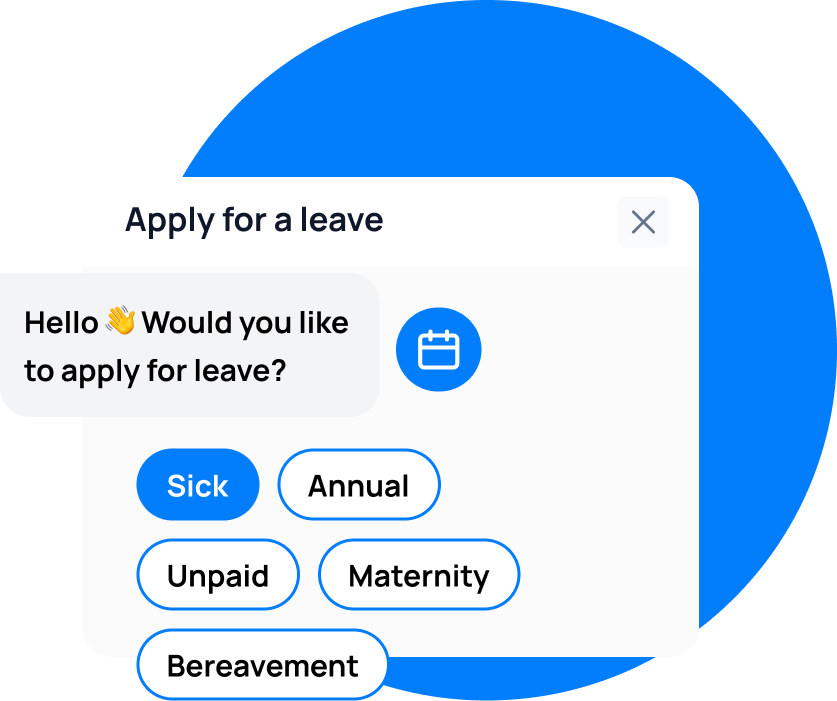
leave emails? Track your employee's leave with Leave Balance
Frequently Asked Questions
Can auto-blocking handle partial-day leave?
Yes, if the system supports half-day or partial-day leave. The shift on the affected partial day is blocked or flagged. If you use full-day leave only, the employee is blocked for all shifts on that day.
What if I approve leave after the roster is published?
The system should flag the conflict and prompt you to either deny the leave or update the roster. Without this flag, the conflict goes unnoticed until the employee does not show up.
Do all rostering tools support auto-blocking?
No. Many rostering tools do not connect to leave management. They rely on manual entry of unavailability. A combined platform or an integration between separate tools is needed for true auto-blocking.
How does auto-blocking affect casual employees?
Casual employees who have not submitted leave requests remain available for rostering. Only approved leave triggers a block. Unsubmitted or pending leave requests do not affect the roster.
Is auto-blocking necessary for teams under 10 people?
For very small teams, a shared calendar may be sufficient. But the moment you have more than one person building the roster or more than 10 employees, auto-blocking prevents errors that manual checking misses.