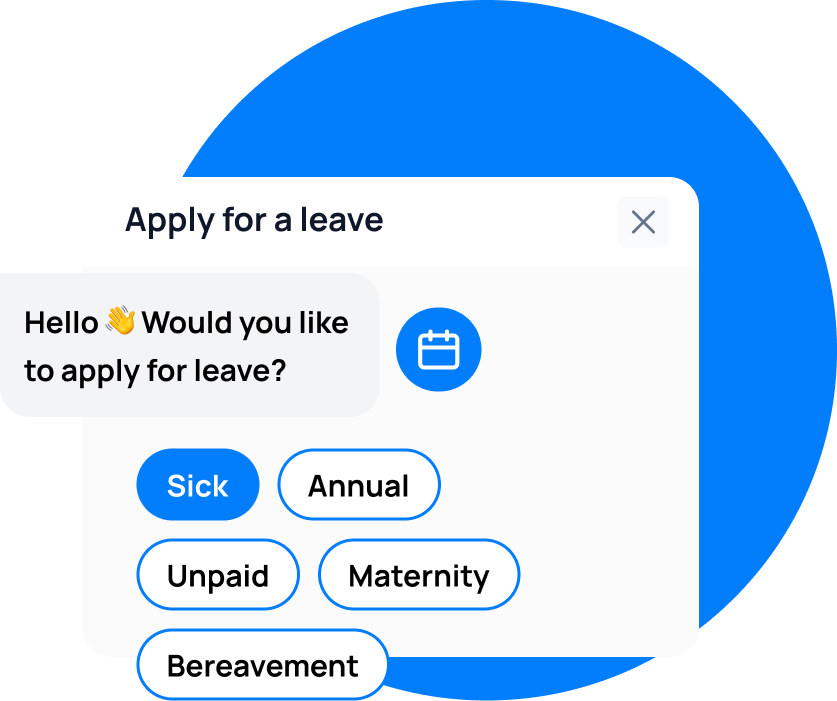
If your team already lives in Slack, asking them to switch to a separate HR tool for leave requests creates friction. People forget, approvals stall, and HR ends up chasing notifications across two platforms. Slack leave management brings the entire leave workflow — requests, approvals, balance checks, and team visibility — into the channel your team already uses every day.
The Leave Balance Slack integration lets employees request leave, check their balances, and receive notifications without leaving Slack. Managers approve or reject requests with a single click, and the whole team gets visibility into who’s out.
Key Takeaways
- Employees can request leave and check balances directly from Slack using slash commands or the Leave Balance app
- Managers receive approval notifications in Slack and can approve or reject with one click
- The team leave calendar posts to a shared channel so everyone knows who’s out
Why Slack Integration Matters for Leave Management
Most teams spend four to six hours a day in Slack. When leave requests live in a separate system, managers delay approvals because they are focused on Slack conversations, not HR dashboards. The result: employees wait days for a response on a simple request.
Slack leave management solves this by meeting people where they already work. Requests appear as interactive messages. Approvals take one click. No context switching, no forgotten notifications, no logging into another tool.
For distributed and remote teams, this matters even more. When someone in London needs to request leave and their manager is in Sydney, the approval needs to happen quickly so the team can plan around the absence. Slack notifications reach managers instantly, whether they are on desktop or mobile.
The integration also reduces the burden on HR. Instead of fielding “can I check my balance?” messages, employees run a slash command and get the answer immediately. Instead of chasing approvals, HR sees the approval status in Slack and can follow up on overdue requests.
How to Set Up Slack Leave Management
Step 1: Install the Leave Balance Slack App
From your Slack workspace, search for Leave Balance in the Slack App Directory, or navigate to the integrations page in your Leave Balance account settings. Click “Add to Slack” and authorize the app with the required permissions.
The integration needs permission to:
- Send and receive messages in channels and direct messages
- Access user profile information for matching Slack users to Leave Balance employees
- Add interactive buttons and menus to messages
Step 2: Connect Your Leave Balance Account
After installing the Slack app, you will be prompted to connect it to your Leave Balance workspace. This is a one-time OAuth connection that links your Slack users to their employee profiles in Leave Balance.
If your team uses Slack Workspaces, the integration maps each Slack user to their Leave Balance profile using email address. Make sure the email on each employee’s Slack profile matches the email in Leave Balance.
Step 3: Configure Notification Channels
Decide where leave notifications go. Common setups include:
| Channel | Purpose |
|---|---|
#leave-requests |
All new leave requests and approvals |
#out-of-office |
Team calendar showing who is out |
#hr-alerts |
Overdue approvals and policy violations |
| Manager DMs | Direct notifications for pending approvals |
Step 4: Set Up Slash Commands
The integration installs the /leave slash command in your workspace. Employees can use it to:
/leave balance— Check current leave balances by type/leave request— Start a new leave request from a modal/leave status— See pending and approved requests/leave calendar— View upcoming absences for the team
Step 5: Test the Workflow
Create a test leave request from a non-production employee or your own account. Verify that:
- The request posts to the configured channel
- The approval notification reaches the correct manager
- The approval button updates the request status in Leave Balance
- The balance reflects the new request immediately
What Data Syncs Between Slack and Leave Balance
| Data | Direction | Frequency |
|---|---|---|
| Leave request details | Leave Balance → Slack | Real-time on submission |
| Approval/rejection | Slack → Leave Balance | Real-time on action |
| Employee leave balances | Leave Balance → Slack | Real-time on query |
| Team out-of-office calendar | Leave Balance → Slack | Real-time, updated on approval |
| Employee profile (name, email) | Slack ↔ Leave Balance | On connect, then on profile update |
| Manager assignment | Leave Balance → Slack | On config change |
Best Practices
- Keep the
#out-of-officechannel read-only. Only Leave Balance should post there. This prevents the calendar from getting buried under conversation. - Set approval SLAs. Configure Leave Balance to escalate overdue approvals after 48 hours. This prevents requests from sitting in a manager’s DMs for days.
- Use Slack User Groups for department routing. If your Leave Balance setup routes requests by department, map Slack User Groups to departments so notifications go to the right approvers.
- Remind teams to update their Slack profiles. If an employee changes their email in Slack, the Leave Balance connection may break. Include profile accuracy in your onboarding checklist.
- Pin the channel topic in
#out-of-office. Add a message like “Use/leaveto request time off. Check this channel to see who’s out.” This gives new team members an immediate reference.
FAQ
Does the Slack integration work with free Slack plans?
Yes. The Leave Balance Slack integration works on all Slack plans, including the free tier. It does not require Slack Enterprise Grid or paid add-ons.
Can employees approve leave requests from Slack?
Only if they have approval permissions in Leave Balance. The integration respects the same role-based access control as the web app. If a Slack user is not an approver, they will not see approval buttons.
What happens if someone requests leave from both Slack and the web app?
Leave Balance deduplicates requests automatically. An employee can request from either surface, and the request appears in both Slack and the Leave Balance dashboard without duplicates.
Can I customise the Slack notification format?
Yes. Leave Balance lets you configure which fields appear in Slack messages (leave type, dates, duration, reason visibility) and whether reasons are shown to the manager in the approval message or kept confidential.
Does the integration support Slack Workflow Builder?
The /leave slash command and interactive messages work alongside Slack Workflow Builder. You can build custom workflows that trigger on leave events, such as posting to a channel when someone’s leave is approved.
leave emails? Track your employee's leave with Leave Balance